WORDPRESS · MAINTENANCE
How to Update WordPress Safely with a Staging Workflow
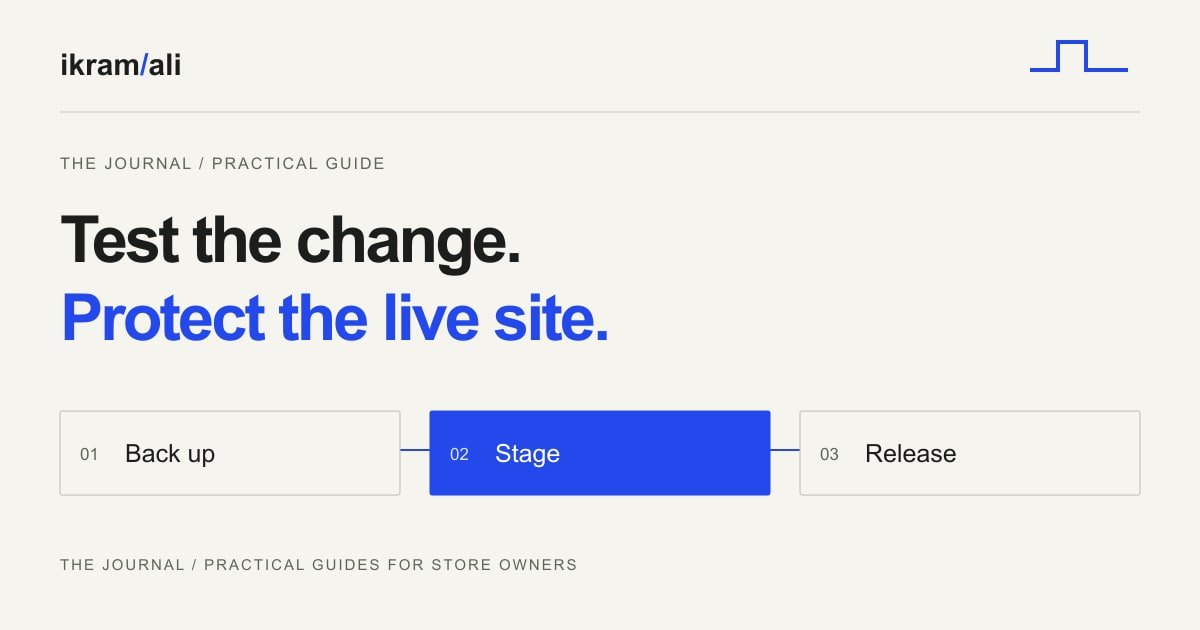
A safe WordPress update process needs three things: a recent backup that can be restored, a staging copy for testing, and a plan that protects new live-site data. A staging site alone does not make an update safe if pushing it live overwrites orders or enquiries received during testing.
This workflow is designed for a business website or small WooCommerce store whose owner wants a repeatable maintenance process. It focuses on update delivery rather than choosing a host or backup product.
Record the working state before changing it
Write down the WordPress version, active theme, important plugins, PHP version, and the pages or workflows that matter. Include the contact form, search, login, and any purchase or booking path.
Capture a few representative screenshots and make one successful end-to-end test. Without that baseline, it is easy to blame an update for a problem that was already present.
Keep the list short enough to use each month. Ten meaningful checks that someone actually performs are more valuable than an enormous checklist left unfinished.
Back up files and the database together
WordPress stores content and settings in the database while themes, plugins, and uploaded files live in the filesystem. Your recovery plan needs both. WordPress's update guidance recommends a backup before upgrading.
Confirm the backup timestamp, storage location, and restore procedure. A dashboard saying “backup complete” does not show how long recovery takes or whether you have permission to perform it. Keep a copy outside the same failure boundary where practical.
Test restoration into a separate environment. The goal is a usable site with its expected content and files, not just a successfully downloaded archive.
Isolate staging from real customers and services
Use your host's staging facility or an equivalent private copy. Protect it from public access and indexing, and verify that protection from a clean browser session. A “Discourage search engines” checkbox is not an access control.
Replace live payment credentials with the appropriate testing setup. Disable or redirect outbound email, scheduled customer messages, and integrations that could create real shipments or duplicate external records. Document what you changed so it is not accidentally copied back into production.
Use anonymized data where possible. A developer testing a layout generally does not need a full copy of customer addresses and order notes.
Update with a dependency plan
Read release notes for the components involved, especially where a plugin specifies a required WordPress or PHP version. Choose a compatible order rather than assuming one universal plugin-first or core-first sequence.
Make the changes in staging and keep a short log of what changed. If a problem appears, that log narrows the investigation. Avoid editing custom theme code and replacing several unrelated plugins during the same maintenance task.
For customizations in a parent theme, identify how they will survive a theme update. A child theme or another appropriate extension point is preferable to repeatedly reapplying unexplained edits after every upgrade.
Test behavior, not only the homepage
For a fictional consultancy site, a useful acceptance run might be:
- Open a service page on a phone and follow its enquiry link.
- Submit the form with valid data and confirm both storage and notification delivery.
- Submit invalid data and check that the error is understandable.
- Edit a page as an ordinary editor and confirm the expected controls still work.
- Check a private page remains private.
For WooCommerce, add product variations, coupons, shipping, payment testing, and order emails. These are different systems; a visually correct checkout screenshot is not proof an order can be completed.
Promote changes without overwriting live activity
A brochure site with no incoming data may support a straightforward deployment. A store receiving orders while staging is tested needs a more careful approach. Do not replace the live database with an older staging database and lose those new orders.
Prefer deploying the tested code and repeating the required configuration changes on the current live data. If a migration genuinely requires a data freeze, agree the window and reconciliation process in advance.
Take a fresh live backup immediately before the release. Re-run the most important checks after deployment because credentials, caching, URLs, and scheduled tasks can differ from staging.
Keep a recovery decision ready
Define which failures justify stopping the release and who can restore service. If rollback is required, account for live data created since the backup; restoring a whole database can undo legitimate activity. Investigate the cause and plan a supported repair rather than leaving an outdated vulnerable component in place indefinitely.
Keep the change log and test result with the site's maintenance notes. For a developer who can explain that handoff clearly, review the services or describe your current WordPress setup.